Creating your first Project
Here we will cover how to create your first Project within UBuild, although it is not required; some understanding of JSON formatting is recommended whenever editing Projects.
Create an empty Project
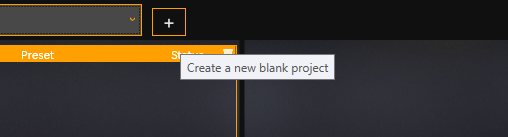
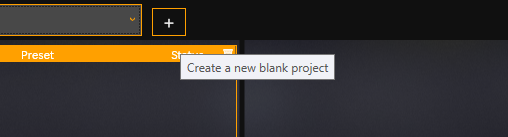
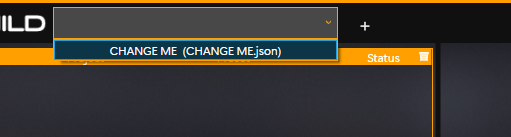
- To start we click the plus button to the right of our Project Selector, this will create a new, blank project for us to edit.
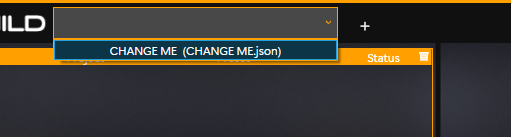
- Now there will be a "CHANGE ME (CHANGE ME.json)" Project within our Project Selector, select this to load it into UBuild.
Editing our empty Project
- Once the Project Selector displays "CHANGE ME (CHANGE ME.json)" as the loaded Project, right-click on the Project Selector and select "OPEN PROJECT CONFIG".

- This will open the project config file in whichever default application handles .json files, It is recommended that you use a lightweight text/code editor (like Notepad++).
- If the file fails to open in your editor of choice, in your File Explorer, right-click the file within the Projects folder, "Open with" > "Choose Another App" > "Always" on that text/code editor. Retry the step above and it should now open the project config in your text/code editor of choice.
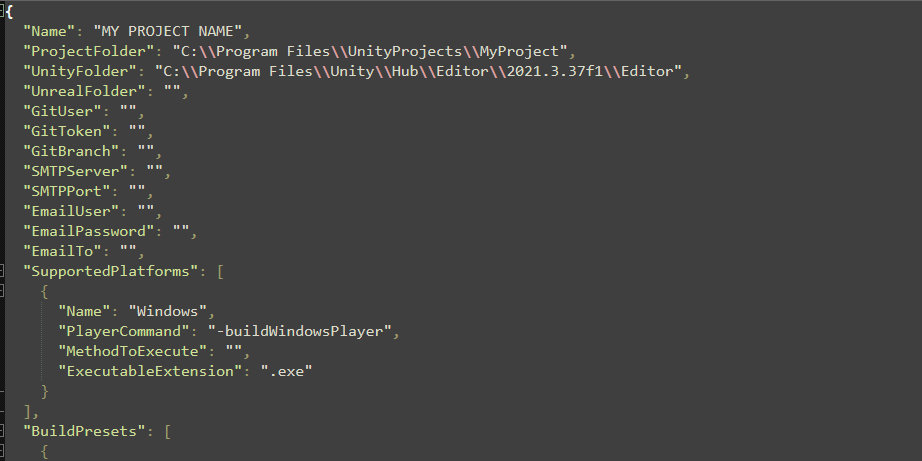
- Now, we must fill out some basic information about the Project we would like to build, the required fields are:
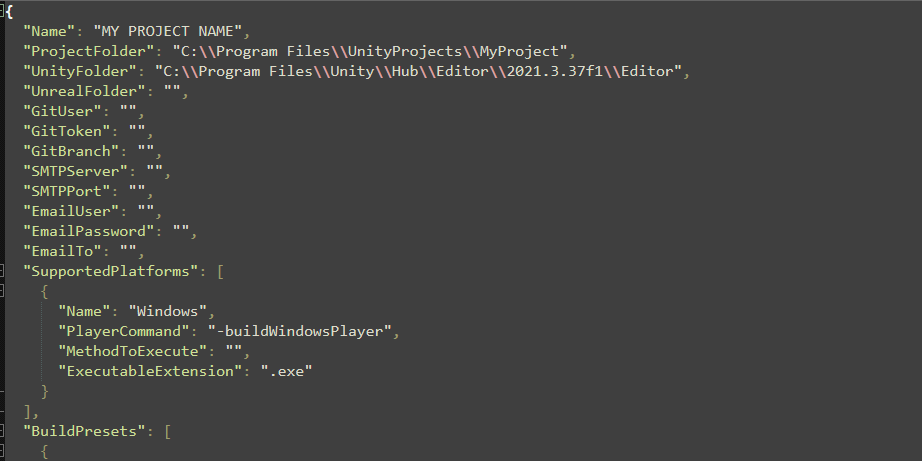
- Name - The name of your Project. This is how it will be displayed throughout UBuild. It will also use this as the final filename of the executable it builds.
- ProjectFolder - This is the path to your Unreal/Unity source project directory. (This can also be a Git URL, more info here)
- UnityFolder - This is the path to your Unity editor directory.
- UnrealFolder - This is the path to your Unreal editor directory.